Custom Tools
Define TypeScript or JavaScript tools that Roo can call like built-in tools—standardize team workflows instead of re-prompting the same steps every task.
Custom tools is an experimental feature. Custom tools are automatically approved when enabled—Roo won't ask for permission before running them. Only enable this feature if you trust your tool code.
What it does
Custom tools let you codify project-specific actions into TypeScript/JavaScript files that Roo calls like read_file() or execute_command(). Ship tool schemas alongside your repo so teammates don't need to keep re-explaining the same workflow steps. Tools are validated with Zod and automatically transpiled from TypeScript.
How to create a tool
Tools live in .roo/tools/ (project-specific) or ~/.roo/tools/ (global) as .ts or .js files. Tools from later directories can override earlier ones.
Basic structure
import { parametersSchema as z, defineCustomTool } from "@roo-code/types"

export default defineCustomTool({
  name: "tool_name",
  description: "What the tool does (shown to AI)",
  parameters: z.object({
    param1: z.string().describe("Parameter description"),
    param2: z.number().describe("Another parameter"),
  }),
  async execute(args, context) {
    // args are type-safe and validated
    // context provides: mode, task
    return "Result string shown to AI"
  }
})
What you define
name: Tool name Roo sees in its available tools listdescription: Shown to the AI so it knows when to call the toolparameters: Zod schema converted to JSON Schema for validationexecute: Async function returning a string result to Roo
Tools are dynamically loaded and transpiled with esbuild. Changes to tool files trigger automatic reload.
Enabling the feature
- Open Roo Code settings (gear icon in top right)
- Go to the "Experimental" tab
- Toggle "Enable custom tools"
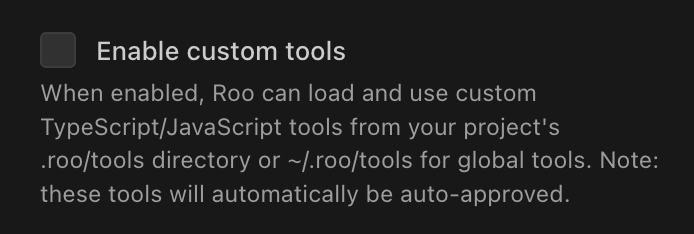
Critical: When enabled, custom tools are auto-approved—Roo runs them without asking. Disable if you don't trust the tool code.
Tool directories
.roo/tools/in your workspace: project-specific tools shared with your team~/.roo/tools/in your home folder: personal tools across all projects
Tools from both directories are loaded. Tools with the same name in .roo/tools/ override those in ~/.roo/tools/.
Using npm Dependencies
Custom tools can use npm packages. Install dependencies in the same folder as your tool, and imports will resolve normally.
# From your tool directory
cd .roo/tools/
npm init -y
npm install axios lodash
Then import in your tool:
import { parametersSchema as z, defineCustomTool } from "@roo-code/types"
import axios from "axios"

export default defineCustomTool({
  name: "fetch_api",
  description: "Fetch data from an API endpoint",
  parameters: z.object({
    url: z.string().describe("API endpoint URL"),
  }),
  async execute({ url }) {
    const response = await axios.get(url)
    return JSON.stringify(response.data, null, 2)
  }
})
Per-Tool Environment Variables
Tools automatically load a .env file from the same folder. This lets you store API keys and secrets without hardcoding them.
Setup:
-
Create a
.envfile next to your tool:.roo/tools/
├── my-tool.ts
├── .env # Loaded automatically
└── package.json -
Add your secrets:
# .roo/tools/.env
SLACK_WEBHOOK_URL=https://hooks.slack.com/services/XXX
API_SECRET=your-secret-key -
Access them via
process.env:import { parametersSchema as z, defineCustomTool } from "@roo-code/types"
export default defineCustomTool({
name: "notify_slack",
description: "Send a notification to Slack",
parameters: z.object({
message: z.string().describe("Message to send"),
}),
async execute({ message }) {
const webhookUrl = process.env.SLACK_WEBHOOK_URL
if (!webhookUrl) {
return "Error: SLACK_WEBHOOK_URL not set in .env"
}
const response = await fetch(webhookUrl, {
method: "POST",
headers: { "Content-Type": "application/json" },
body: JSON.stringify({ text: message }),
})
return response.ok ? "Message sent" : `Failed: ${response.status}`
}
})
Security: Add .roo/tools/.env to .gitignore to keep secrets out of version control.
Limits
- No approval prompts: Tools are auto-approved when the feature is enabled—security trade-off for convenience
- String-only results: Tools must return strings (Roo's protocol constraint)
- No interactive input: Tools can't prompt the user mid-execution
- Cache invalidation: Tool updates may require reloading the window
vs. MCP: MCP is for external services (search, APIs). Custom tools are for in-repo logic you control directly. MCP is more extensible; custom tools are lighter weight for project-specific actions.